


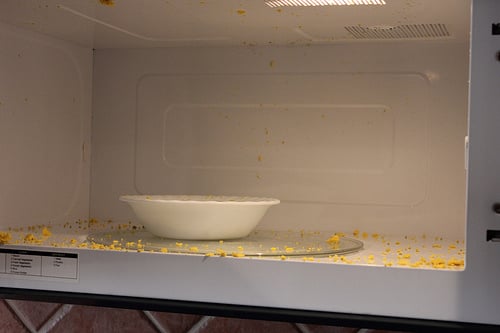
Yesterday, I tried to heat up some hardboiled eggs in the microwave. For the record, that was not a good idea. 🙂
As I was cleaning up the egg particles that had exploded all over every nook and cranny of the microwave (I had to use an old toothbrush to get some of it cleaned up from the crevices of the door!), I realized how fitting this egg explosion was — because it has pretty much felt like my whole week was a series of one mess or explosion after another.
I said earlier this week that I was back to regular blogging this week… and I totally expected to be. But I failed to really take into consideration what all was on my plate this week — and then there were some unexpected curveballs thrown in there, too:
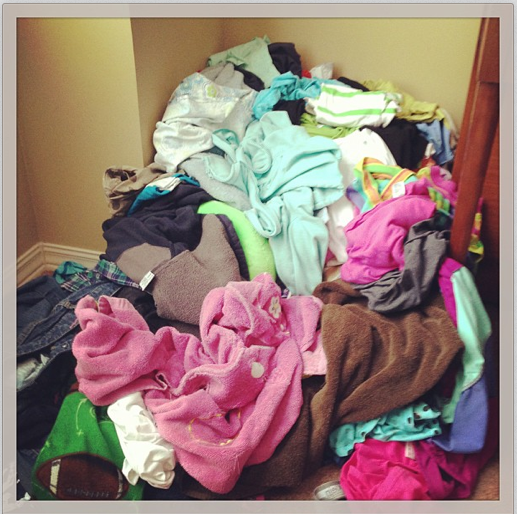
- We were out of town all last week, so I came home to piles of emails, work projects, and laundry. (And my assistant was out of town all of this week — we’re so glad she was able to go on vacation, but boy did I realize how much I rely on her help!)
- The first pass of my book was due back to my publisher on Wednesday. Finishing this required a number of hours’ worth of work on Monday and Tuesday. (The first pass is the version where it’s all laid out exactly as it will go to the printers — my mom and I went through it with a fine-toothed comb trying to catch each and every typo or other error).
- A child accidentally spilled a big glass of iced tea on Jesse’s computer causing it to stop working and resulting in a $250 repair bill.
- Our car was in the shop for half of the week… and they were unable to figure out what the issue was.
- I forgot to take my sinus/allergy medication at the end of last week and paid for it this week with a chronic headache that sent me to bed a few times because it was so severe.
- And then, my blog’s server had major issues which resulted in it being down or crawling at a snail’s pace much of Tuesday and Wednesday. When we finally got everything worked out and up and running again, something happened somewhere that locked everyone on my team (including me!) out of my blog. (We are in the process of switching servers to resolve this problem and prevent it from happening again in the future.)
My visions of a quiet, organized, calm week definitely didn’t materialize… but I tried to count my blessings in the middle of the messes:
- I’m grateful we were able to take a vacation as a family — we made many memories and it was a wonderful time away.
- I’m thankful for my assistant and all she does to help relieve my workload — I’d be sunk without her!
- I’m humbled to have the opportunity to write another book and am so thrilled to see it coming together so beautifully!
- I’m thankful we had money set aside to pay for the computer repairs and the car repairs. Both cases could have been worse and more expensive.
- I’m grateful for my sinus/allergy medication — without it, I would be in constant pain.
- And I’m so thankful that it’s been years since we’ve had blog/server issues to the severity that they were this week. I’m also very grateful for Joy from FiveJDesign.com and her technical expertise — there’s no way I could figure out how to fix and resolve these issues on my own!
In reality, these issues this past week were so minor. Yes, they were inconvenient. Some of them were costly. Some of them took a lot of time to deal with. But none of them were life-threatening. None of them were permanent or even long-term.
So in the midst of mess, I’m grateful. So very grateful.
And maybe next week things will be a little more smooth sailing? We’ll see!












 Read 3 chapters of




 Do you have a fun and frugal DIY idea to share? I’d love to hear about it! Read the submission guidelines and submit it