
Walmart
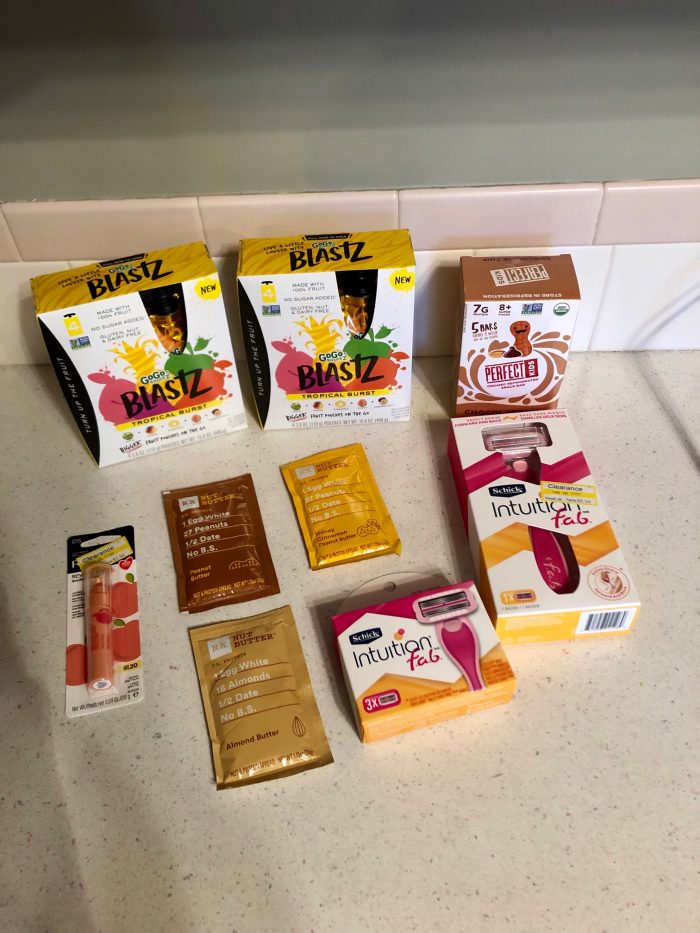
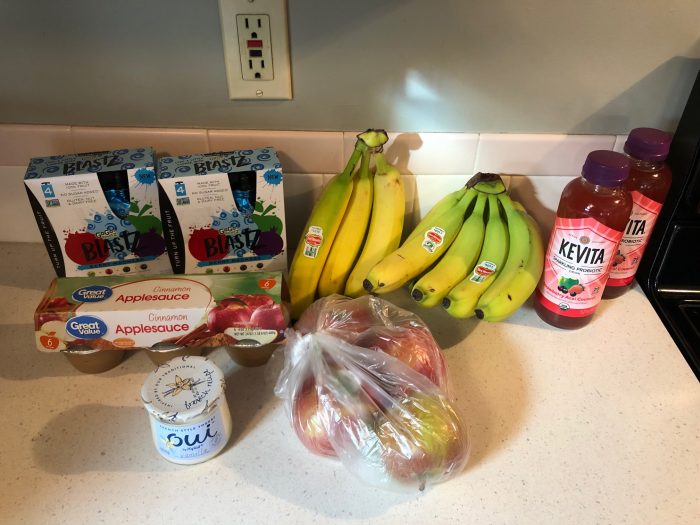
2 GoGo Squeeze Blastz – $2.94 each, used 2 $1/1 peelie coupons AND 2 $1/1 Ibotta rebates – $0.94 each after coupons and rebates
1 pkg Great Value Applesauce – $1.43
2 Kevita Drinks – $2.50 each, used $1.10/2 Ibotta rebate – $1.95 each after rebate (My newest obsession! Who else loves these drinks?!!)
1 Oui Yogurt – $1.34, used Free Ibotta rebate – Free after rebate
3.91 lbs Bananas – $1.92
1.72 lbs Apples – $1.70
Used $0.25/1 Ibotta rebate for any receipt
Total after coupons and rebates: $10.58
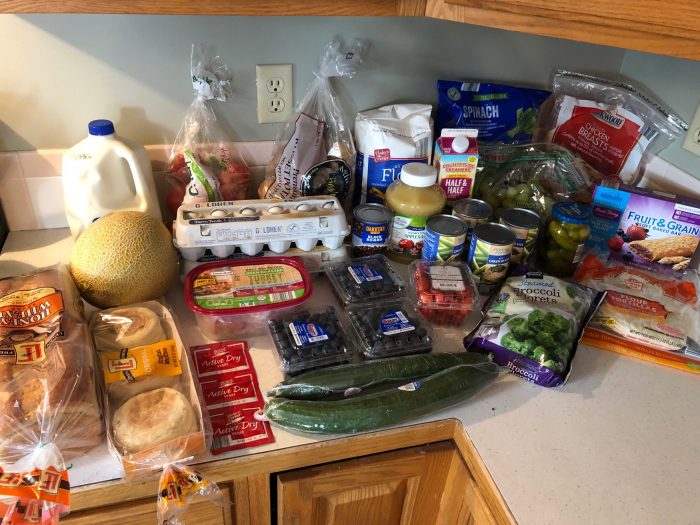
Aldi
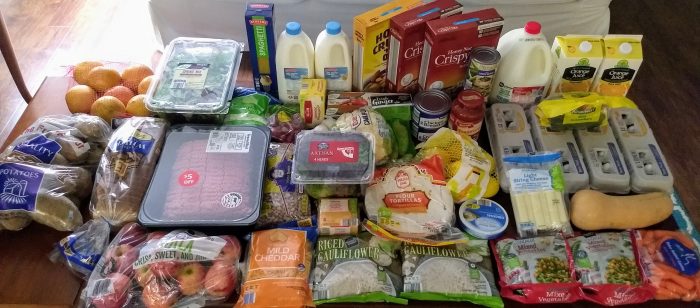
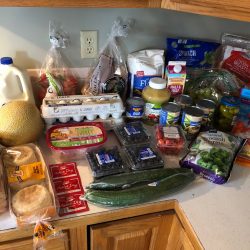
4 cans Green Beans – $0.49 each
1 pkg Green Grapes – $2.33
1 pkg Frozen Chicken Breasts – $5.99
3 pkg Blueberries – $1.59 each
1 pkg Fruit & Grain Bars – $1.39
1 pkg Spinach – $1.19
1 pkg Frozen Broccoli – $1.19
1 pkg Oven Roasted Turkey Breast – $3.99
5 lbs Potatoes – $1.89
1 pint Grape Tomatoes – $1.79
2 dozen Eggs – $0.58 each
1 bag Gala Apples – $1.49
1 pkg English Muffins – $0.99
1 Yeast Packets – $0.89
1 jar Dill Pickles – $1.29
1 loaf Bread – $1.49
1 gallon Milk – $1.49
2 Cucumbers – $1.29 each
1 Half & Half – $1.79
1 Unsweetened Applesauce – $1.89
1 can Black Beans – $0.59
1 Cantaloupe – $1.29
1 pkg Flour Tortillas – $1.19
1 pkg Flour – $1.59
Total: $44.72
Total for all groceries: $55.30
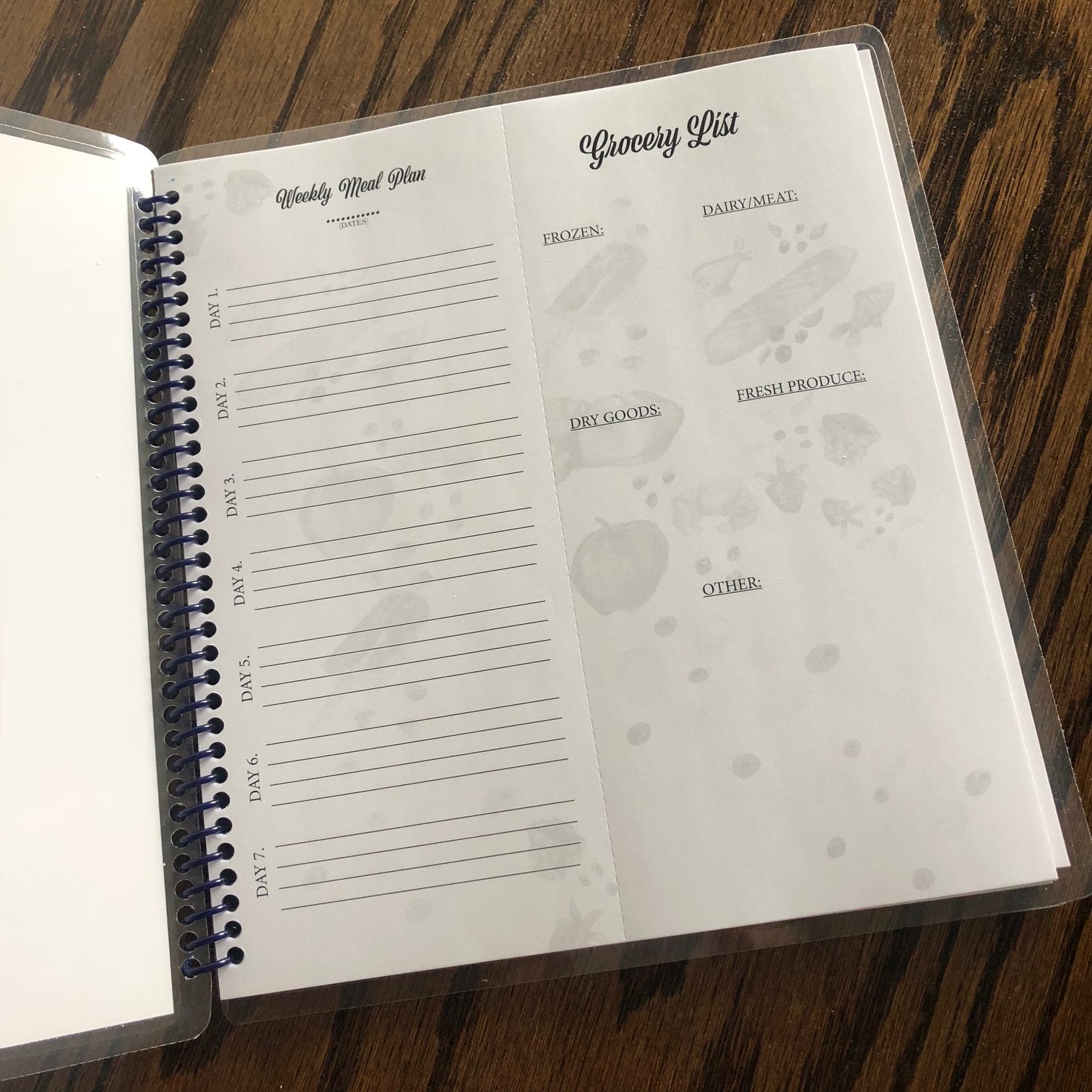
Menu Plan for This Week
Breakfasts
Oatmeal Muffins, Toast, Scrambled Eggs, Bananas
Lunches
Tossed Salad, Turkey Sandwiches, Peanut Butter & Jelly Sandwiches, Fruit/Veggies/Crackers, Leftovers
Dinners
Mac & Cheese, Sliced Apples
Sour Cream Chicken Enchilada Skillet, Oatmeal Muffins, Oranges (trying to use these up from last week)
Homemade Cheese Pizza
Beef & Gravy over Noodles, Breadsticks, Cantaloupe
Black Bean Quesadillas, Corn Chips (leftover from our New Year’s Eve party)
Blueberry Pancakes, Eggs, Fruit Salad
Leftovers